Dronecan setup
Connect
Mission Planner
Connect the module to your Autopilot (Azimarik, Pixhawk, Matek..), make sure both are powered and connected to the same CAN-bus.
You also may need to enable the CAN driver on the autopilot.Start Mission Planner and connect to autopilot via USB as usual
Navigate to Setup -> Optional Hardware -> DroneCAN
From the dropdown MAVLinkCAN1 or 2
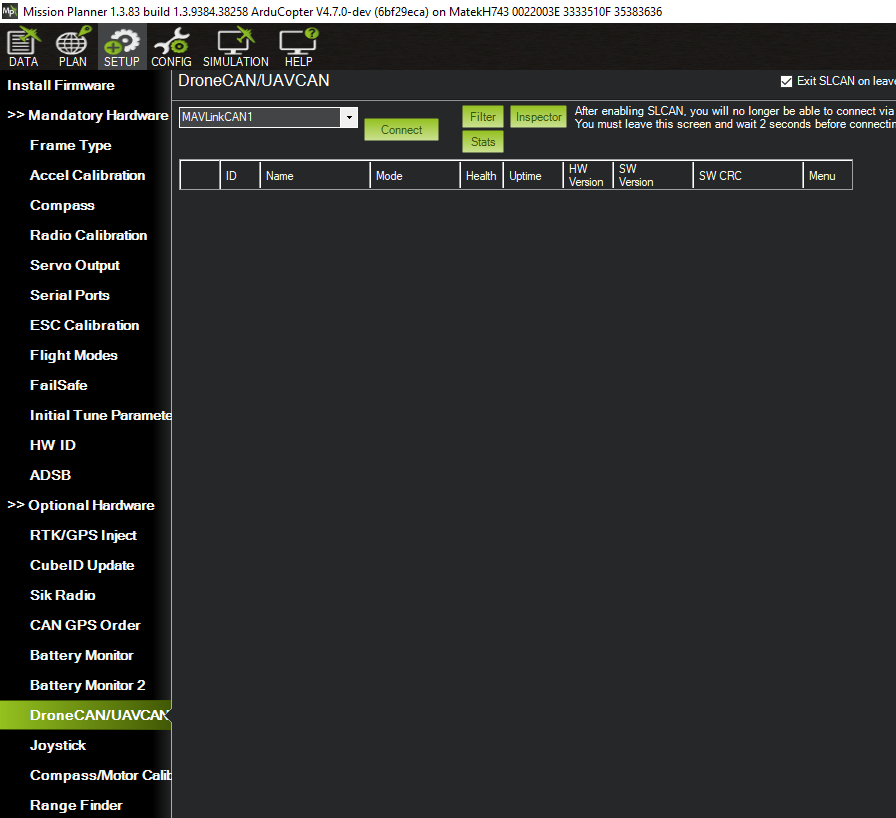
- Once clicked "Connect" Mission Planner will enumerate all the devices connected to the CAN network.
This module will show up either as io.seaworks.type1673.vspdriver or io.seaworks.type1673.apperiph according to the loaded firmware.
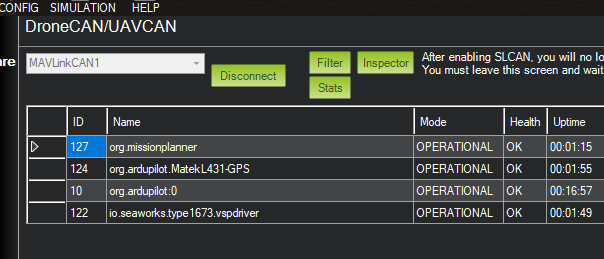
- In the inspector you are able to observe the entire traffic on the CAN-bus and check which messages and data the module is sending or receiving. It is useful for debug but also to correctly configure the vehicle and monitor the hardware.
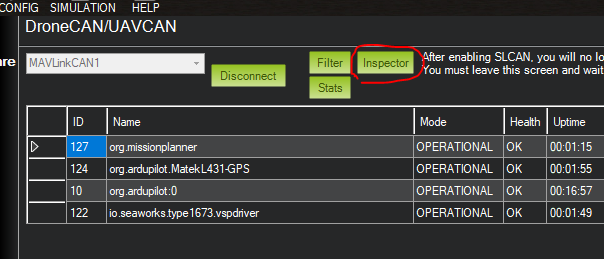
With all functions active the inspector will look like this, for example:
- ardupilot_gnss_Status and uavcanequipment_gnss* are responsible for the transport of GPS data.
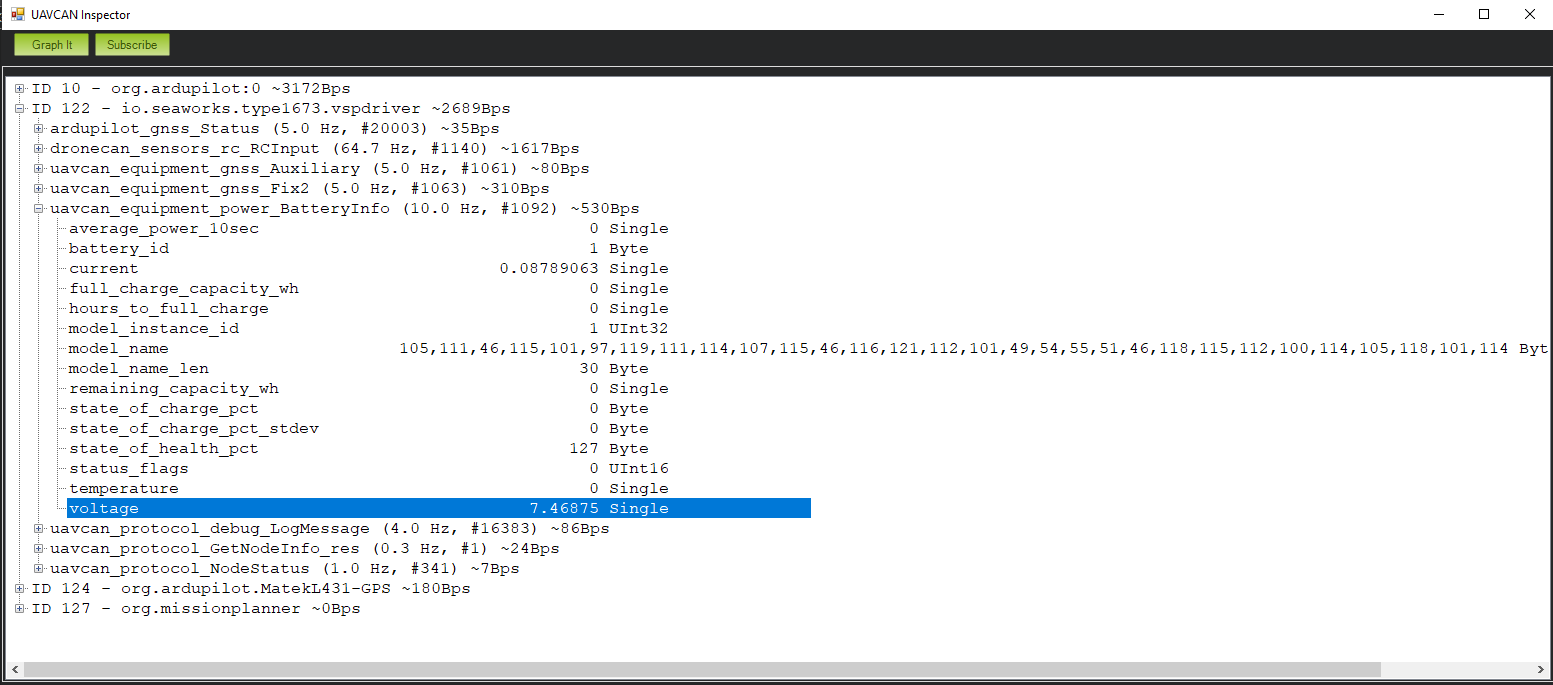
- uavcan_equipment_power_BatteryInfo allows to check the VCC rail volrage
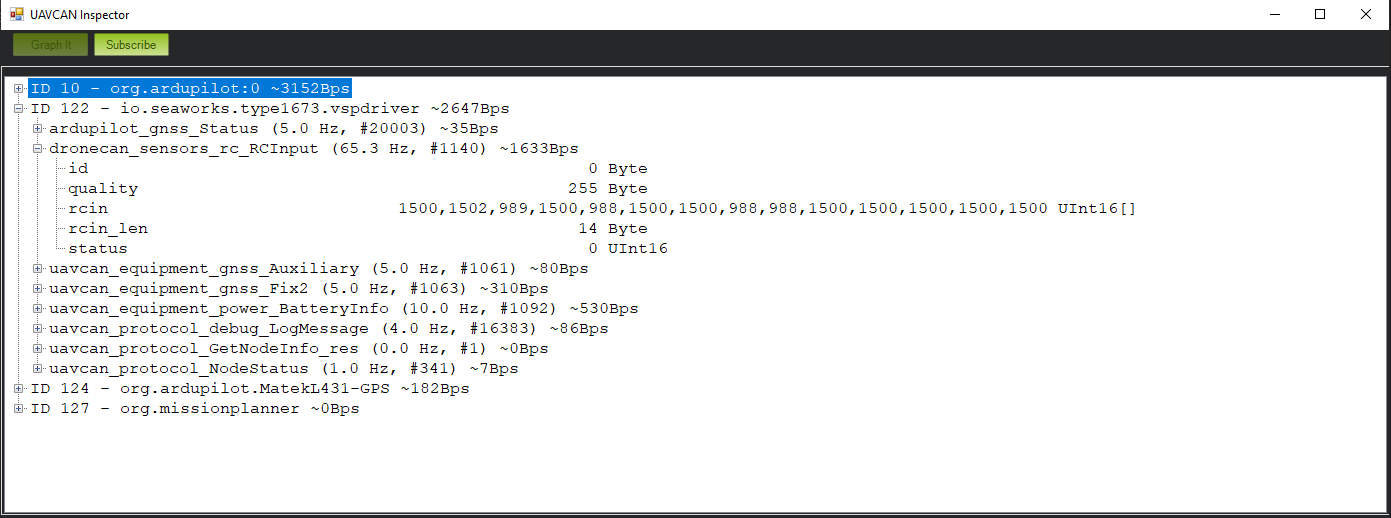
- dronecan_sensors_rc_RCInput does transport the RC input data, usually and array of 16 unsigned integers.
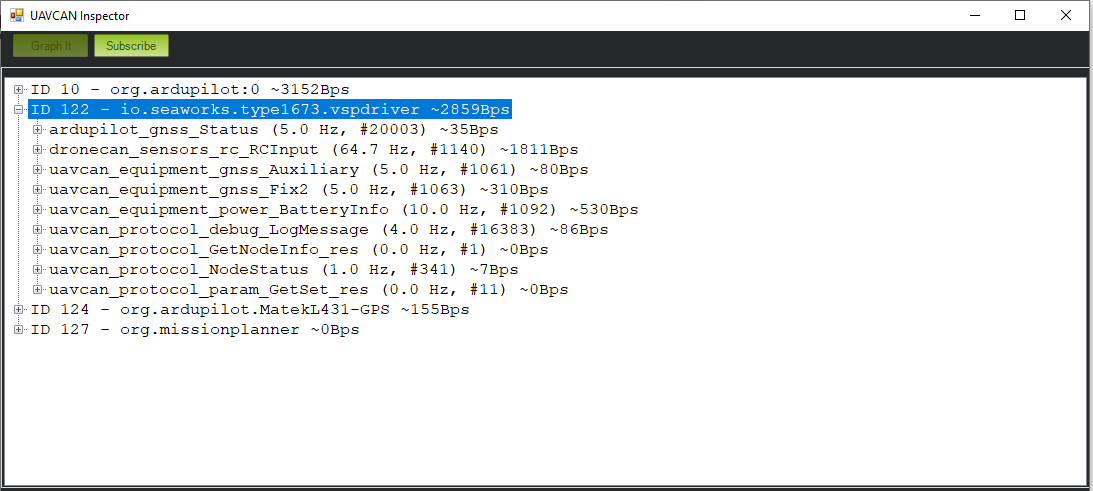
By expanding the message in the inspector you can check the real time values, e.g. the VCC rail voltage, useful to analyze eventual voltage drops:
Peripherals
RCIN
A remote control receiver can be connected to the module, offloading the Autopilot from this duty. Most protocols are supported.
The classic RCIN function and SBUS input are mutually exclusive, one at a time can be used. Bidirectional protocols are not supported.
To enable receivers connected to the RCIN port, for non-inverted protocols such as SUMD or IBUS:
- RC_PORT 2
- RC_PROTOCOLS 1
- RC1_PORT_OPTIONS 0
Once set up with the correct parameters, and after a reboot, inside the inspector tool you can check if all the relevant channels are published on the CAN bus:
SBUS
To use SBUS and other inverted protocols, connect the receiver to the "SBUS" pin and set the following parameters:
- RC_PORT 1
- RC_PROTOCOLS 1
- RC1_PORT_OPTIONS 0
GPS module
It is possible to connect a U-Blox GPS receiver with or without compass to the 6pin GNSS labeled port. To forward GPS data to the autopilot, just be sure to set this parameter and restart all systems:
- GPS_PORT 0